

Trello remains one of the most widely used web-based project management platforms in 2025, serving both individuals and teams that value visual task organization. Its core structure — based on boards, lists, and cards — makes it easy to map workflows, assign responsibilities, and track project progress in a clear, intuitive way.
While the Free version of Trello offers solid tools for basic project management, Trello Premium enhances the experience with advanced automation, detailed dashboard views, timeline visualization, priority support, and deeper integrations with other apps.
However, as budgets tighten and features evolve, you may decide that Premium’s additional cost is no longer justified. If so, you can safely cancel Trello Premium and transition to the Free or Standard plan without losing essential project data — provided you prepare correctly. In this article, we discuss about how to cancel Trello premium. Let’s start.
Things to Consider Before Canceling Trello Premium
Before canceling your Trello Premium subscription, it’s important to understand how the downgrade may affect your workflow and collaboration. Planning ahead will help ensure a smooth transition to the Free or Standard plan.
1. Access to Premium Features
Once your billing cycle ends, all Premium-only features will be disabled. This includes advanced views (Timeline, Table, Calendar, Dashboard), unlimited automation (Butler commands), and advanced admin controls. Before canceling, review which of these tools your team uses most frequently and decide whether the Free or Standard plan will meet your needs.
2. Team Collaboration and Member Limits
The Free plan now supports up to 10 collaborators per Workspace (as of 2025). If your team exceeds this limit, consider either:
-
Moving to the Standard plan ($5 per user/month, annual billing), which allows unlimited boards and members, or
-
Creating separate Free Workspaces for different teams, though this can complicate workflow management.
Downgrading may also disable certain Power-Ups and integrations, which can reduce team efficiency if you rely heavily on them.
3. Data Export and Backup
Trello allows data exports for all users, but only Premium and Enterprise users can export board data directly in CSV format. Free users can still back up boards manually using JSON export or third-party integrations.
Before cancellation:
-
Export critical boards and attachments.
-
Download essential data such as checklists, due dates, and attachments.
-
Consider archiving important boards instead of deleting them outright.
4. Documenting Complex Workflows
If your team has established custom fields, automation rules, or Power-Ups that streamline tasks, document these processes before canceling. Once you downgrade, custom fields become hidden but not deleted — you’ll need to re-enable them if you upgrade again later.
5. Evaluating Alternatives to Full Cancellation
If cost is your main concern, you might not need to cancel entirely. Trello’s Standard plan (introduced as an affordable middle tier) retains most collaborative and automation features at half the Premium price.
Alternatively, you can:
-
Reduce the number of paid seats (keep only essential users on Premium).
-
Switch to annual billing for a discount.
-
Use Trello’s nonprofit or educational discounts, if eligible.
How to Cancel Trello Premium (Updated for 2025)
The cancellation process has been streamlined within Trello’s new interface. Here’s how to do it:
1. Log into your Trello account.
2. Open the Trello project that’s using Trello Premium.
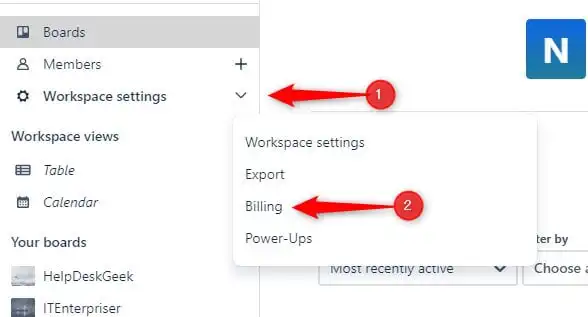
3. Click Workspace settings > Billing.
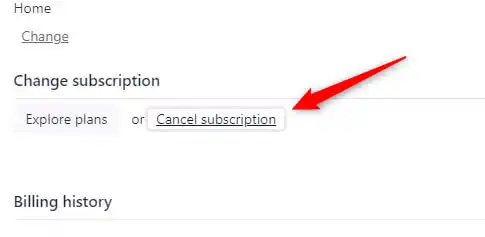
4. In the Change subscription group, click Cancel subscription.
5. Confirm your cancellation.
Important: Only Workspace administrators can manage billing and cancel a subscription. Mobile app users must use the web version to complete the process.
Trello will retain your Premium features until the end of your current billing cycle. After that, your account will automatically convert to the plan you selected.
What Happens After You Cancel Trello Premium
When your Trello Premium subscription ends, your Workspace automatically reverts to the Free plan (unless you choose Standard). This transition is automatic and does not immediately delete your data. However, several feature and usage limitations will take effect:
Key Changes After Downgrading in 2025
-
Board Limits: Only 10 active boards per Workspace are allowed on the Free plan. Other boards are “closed” but not deleted — they can be reopened if you upgrade again.
-
Collaborator Limit: Up to 10 members per Workspace.
-
Automation (Butler): Limited to 250 automation runs per month on Free; Standard offers 1,000.
-
Views: You will lose access to Premium-only views such as Timeline, Table, Calendar, and Dashboard.
-
File Attachments: Maximum 10 MB per file (Free) compared to 250 MB (Standard/Premium).
-
Custom Fields: Hidden after downgrade; data remains but cannot be edited.
-
Power-Ups: Free users can enable only one Power-Up per board.
To avoid disruption, review which boards and automations are most important and plan accordingly before downgrading.
Trello in 2025: New Features You Should Know Before Canceling
Trello has introduced several improvements since 2024, which may influence your decision to stay subscribed:
-
New Trello Interface: A cleaner, faster design with simplified navigation and an upgraded sidebar.
-
AI-Powered Tools: Trello Premium now includes experimental AI summaries and task suggestions for cards.
-
Planner & Inbox Views: New views help users manage multiple boards and notifications more efficiently.
-
Improved Security Controls: Advanced admin and permission settings in Premium and Enterprise plans.
If your workflow could benefit from these new capabilities, consider whether downgrading now might limit your future productivity.
Frequently Asked Questions (FAQs)
Q1: Will my boards be deleted after cancellation?
No. Boards beyond your 10-board Free limit are simply “closed.” They remain accessible for export or can be reopened if you upgrade again.
Q2: Can I get a refund if I cancel early?
Refunds depend on your billing method. Monthly plans usually remain active until the end of the billing period. Annual plans may offer partial refunds if canceled through Atlassian support.
Q3: Will I lose my data?
No data is immediately deleted. However, certain Premium-only features (like Custom Fields) become hidden until reactivated. Always back up your data before downgrading.
Q4: Can I upgrade again later?
Yes. You can upgrade to Standard or Premium at any time, and all your data and configurations will be restored automatically.
Final Thoughts: Is Canceling Trello Premium Worth It in 2025?
Canceling Trello Premium can be a smart financial move if your team no longer depends on advanced views, large file attachments, or extensive automation. The Free plan remains ideal for individuals and small teams managing simple projects, while the Standard plan offers a solid middle ground for growing teams that need more collaboration features at an affordable rate.
Before you cancel, take time to back up your data, review your workflows, and communicate changes to your team. By doing so, you’ll ensure a seamless transition — keeping your productivity intact while reducing unnecessary costs.

– is a trusted tech reviewer who dives deep into the world of computing, home appliances, TVs, digital gear, and software lifetime deals. With a sharp eye for performance and value, he helps readers and buyers make smarter decisions through honest, data-driven reviews. Whether it’s the latest gaming rig, a must-have productivity tool, or a hidden lifetime deal gem, Billy breaks it all down—so you get the best tech without the guesswork.
